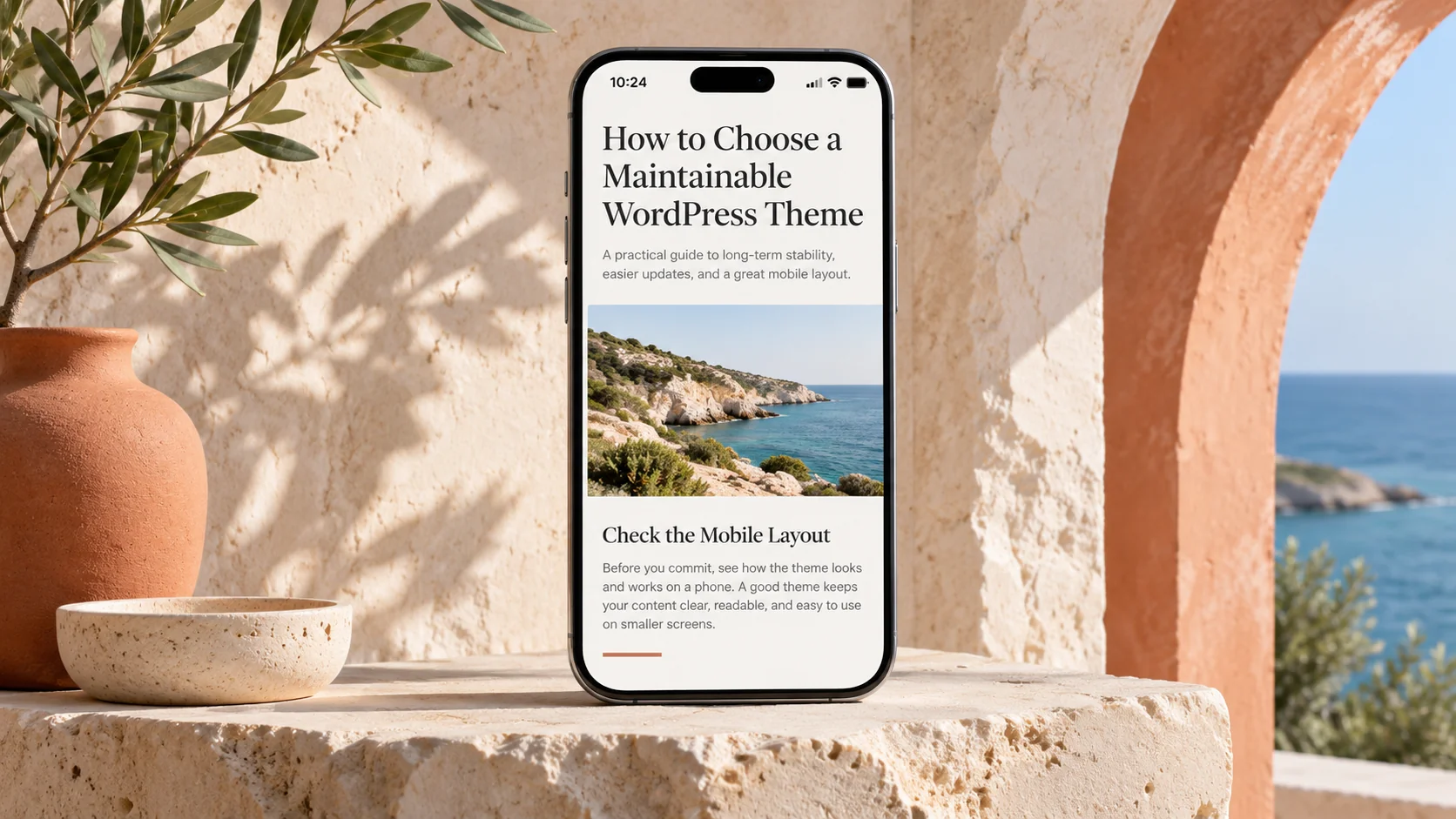
A WordPress theme sets the pace for the work you will do after launch. A strong demo is a good first impression. The better question is how easily you can publish a new page, adjust a header or hand the site to the next person who needs to maintain it.
Use this guide to compare themes against the content you really have, test the editing workflow and plan how you will keep the site working through updates.
Choose around the pages you will use
List the pages you expect to publish repeatedly. A small business might need service pages, profiles and a contact form. A publication may care more about long articles, archives and author pages. A shop needs clear product pages, a useful mobile navigation and a checkout that works with its product types.
Choose the three page types that matter most and check them in the theme demo. A striking homepage is useful, but it usually changes less often than the pages you create every week. Look for a sensible fallback if an article has no featured image or a team profile has a long name. These everyday cases tell you how the design will cope with real content.
Check how you will edit the site
Ask whether the theme uses the WordPress Site Editor, the classic Customizer, a separate page builder or a combination. A block theme lets you change templates and global styles in the Site Editor. A classic theme may use settings and templates managed elsewhere. Try the editing tools the site owner will use, including the steps for updating the navigation, footer and a repeated page layout. WordPress Site Editor documentation
If a particular builder is required, check how much of the demo depends on it. Ask whether a paid add-on is needed for features you want. Confirm who will renew any required licences, who can edit the pages and what happens to those pages if you move to a different theme later.
Separate the theme from its dependencies
Check the listed WordPress and PHP requirements on the site you will use. Identify the plugins that are required for the theme to work and the optional ones used in the demo. For example, a theme may style an online shop, but the shop itself is provided by a separate plugin. A demo form, map or gallery may have its own plugin and settings as well.
Ask what comes in the download. Demo photography, fonts, stock icons or a premium builder licence may need separate permission or purchase. Compare the theme using the assets you actually intend to use. Check the documentation for any demo importer. On a site with existing content, test an import on a copy and verify which pages and settings it adds before you run it anywhere important.
Test the demo with a mobile and accessibility checklist
On a phone, try a menu, a long page, a form and any shop workflow you rely on. Can you read the body text without zooming? Do long menus and wide tables fit? On a computer, try using the keyboard to reach and activate the navigation and form controls. Check whether you can see the focused control and whether buttons are described clearly.
Preview with your own sample content when you can. A theme may look tidy with short demo headlines and matching image crops. Test longer titles, mixed image sizes and a page with lots of text. If the site will support more than one language, try a long menu label and check any required right-to-left layouts or fonts in the documentation.
Look at performance in the pages you will build
Separate the theme’s layout from the demo environment. Slow hosting or a large hero video can make a decent theme feel heavy. A fast demo can also rely on a setup you will have to reproduce. Try pages you are likely to use on a slower connection or with browser throttling, then check which images, fonts and scripts they load.
Look for straightforward ways to keep pages light. Reuse image sizes that make sense for your content, choose a small number of fonts and avoid adding a separate plugin for every visual effect. Your test is more useful if it represents your actual pages than if it chases a score on the theme’s demo homepage.
Plan changes with future updates in mind
Check how the author delivers theme updates and whether the changelog describes fixes or compatibility changes. Before editing theme code, plan how to keep custom changes separate. For a classic theme, a child theme is one way to make template or style overrides while continuing to update the parent. For block themes, first see whether the Site Editor or global styles cover the adjustment you need. WordPress child theme handbook · WordPress global settings and styles
Make a note of who owns updates, plugin renewals and backups. Test updates on a copy of the site when there are important forms, shop pages or custom changes. Keep a record of those customisations so a new maintainer knows what to re-check after updating the theme.
Use a staged handover before you decide
Build one ordinary page and one difficult page on a test site using the theme and the plugins you plan to keep. Give the site owner a simple task, such as publishing a news post or changing the contact details. Watch where they need assistance. That will tell you whether you have a design the next person can maintain.
When a listing looks promising, compare its requirements, included files and support information and review the Codetsy Licence Terms before purchase. Browse Codetsy to put your shortlist together. What is the first thing you check in a theme demo? Share it in the comments.
Comments
No comments yet.
Sign In to Comment